

A logo or a card that stops dead at its target looks mechanical. Real objects, on the other hand, overshoot a little, come back and then settle. In After Effects, you add that life with an inertial bounce. In this post, we explain how overshoot differs from bounce. We also cover three ways to build them. Finally, we show the ready effects in Motion Suite.
In short
2
types: overshoot and bounce
3
settings: amplitude, frequency, decay
0
keyframes (with overshoot in)
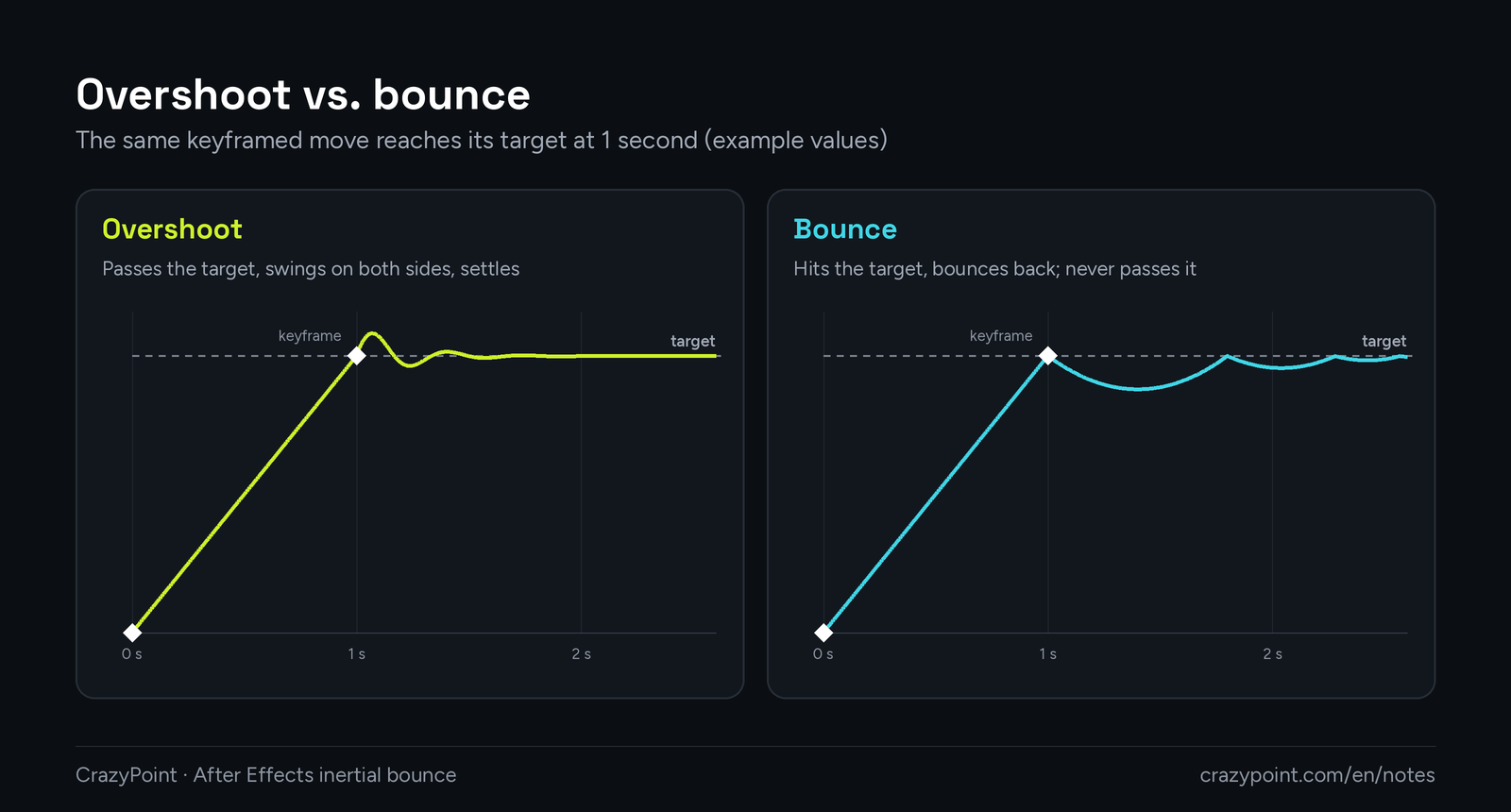
Both add life to the end of a move. However, they treat the target differently:
| Type | What it does | Where to use it |
|---|---|---|
| Overshoot | Passes the target, swings back and forth, then settles | A logo appearing, a card opening, an icon growing |
| Bounce | Hits the target and bounces back; each bounce is shorter than the last | A falling object, a ball, text landing on the floor |
The simplest route is to add two more keyframes. Put one past the target and one just short of it. For a logo that pops in, Scale could look like this:
| Time | Scale | What happens |
|---|---|---|
| Frame 0 | 0% | Start |
| Frame 8 | 110% | Passes the target |
| Frame 12 | 96% | Comes back a little |
| Frame 16 | 100% | Settles |
These values are only an example. Then select the keyframes and press F9 for Easy Ease. We cover Easy Ease in our easing post. However, with this method you need to set the keyframes again for every move.
The most shared overshoot code is known as “inertial bounce”. Its common form goes back to Dan Ebberts’ examples at motionscript.com. The idea is simple. The layer’s speed at its last keyframe turns into a fading wave. We simplified the version below:
amp = 0.05;
freq = 3;
decay = 6;
n = 0;
if (numKeys > 0) {
  n = nearestKey(time).index;
  if (key(n).time > time) n--;
}
if (n > 0) {
  t = time - key(n).time;
  v = velocityAtTime(key(n).time - thisComp.frameDuration / 10);
  add(value, mul(v, amp * Math.sin(freq * t * 2 * Math.PI) / Math.exp(decay * t)));
} else {
  value;
}
First, add at least two keyframes to the property, for example Position. Then Alt-click (Option-click on Mac) the stopwatch and paste the code. The three numbers work like this:
| Setting | What it does | When you raise it |
|---|---|---|
| amp | Amplitude: how much of the arrival speed turns into swing | The swing gets wider |
| freq | Frequency: swings per second | The swing gets faster |
| decay | Decay: how quickly the swing dies down | The move settles sooner |
To make a layer grow in from zero, you don’t even need keyframes. Write this expression on Scale:
freq = 2.5;
decay = 7;
t = time - inPoint;
s = (t <= 0) ? 0 : 1 - Math.exp(-decay * t) * Math.cos(freq * 2 * Math.PI * t);
mul(value, s)
The layer grows from 0% at its In point. Then it passes the target slightly and settles at 100%. If you slide the layer in the Timeline, the entrance moves with it. That is why it works well for icons that appear one after another.
The expression uses the speed at which the layer reaches its last keyframe. However, Easy Ease brings that speed down to zero. As a result, the swing is zero too. Keep the last keyframe linear, or ease only the first one.
Overshoot and bounce need at least two keyframes. That is because without a move there is no arrival speed. For a keyframe-free entrance, use the third method.
Raise decay or lower amp. For example, raising decay from 6 to 9 makes the move settle noticeably sooner.
Tip
To turn a move into keyframes, select the property. Then use Animation › Keyframe Assistant › Convert Expression to Keyframes.
Motion Suite is a plugin we built for After Effects. The Motion category of its Library has three ready effects:
| Ready effect | What it does | Default settings |
|---|---|---|
| Inertia (Spring) | At the end of a keyframed move, the layer swings back and forth and settles | Amplitude 0.06, frequency 3, decay 6 |
| Bounce | At the end of a keyframed move, the layer bounces like a dropped ball | Elasticity 0.6, gravity 4000, max 6 bounces |
| Overshoot In | The layer scales up from zero, overshoots slightly and settles; no keyframes needed | Frequency 2.5, decay 7 |
Inertia and Bounce work on Position, Scale and Rotation. Overshoot In is for Scale. Here is how you set one up:
In Bounce, elasticity sets how high each bounce goes. Gravity, in turn, sets how quickly the bounces end. If you select more than one layer, the Library also shows a delay option. Then icons bounce in one after another, a set number of frames apart.
You can download Motion Suite from its app page after signing in with Google. It is free until January 5, 2027. It runs on After Effects 2026 with Windows 10/11. The panel works in English and Turkish.
Besides these, the Library has ready expressions such as wiggle, loops and a counter. For example, we cover shake in our wiggle expression post.
Yes, but only on the first keyframe. If you ease the last keyframe, the arrival speed drops to zero. As a result, the bounce disappears.
No. Elastic, or overshoot, swings on both sides of the target. Bounce, however, hits the target and bounces back without passing it.
Yes. Select the property and use Animation › Keyframe Assistant › Convert Expression to Keyframes. It adds a keyframe on every frame.
No. Motion Suite builds After Effects’ own expressions and control effects. So your project keeps working without the plugin.
Bring motion to life without code
Motion Suite is free until January 5, 2027. Want us to produce animated videos for you? See our Video Production page.



Comments are closed