

Shaky text, a handheld camera or a gently floating logo needs no keyframes. In After Effects, a short line called the wiggle expression does the job. It moves a value around its own starting point at random. In this post, we explain how the wiggle expression works and how to handle common cases. We also show the ready wiggles in Motion Suite.
In short
2
settings: frequency and amplitude
3
ready wiggles (Motion Suite)
0
keyframes needed
According to Adobe’s example, wiggle(2, 30) on Position moves a layer twice a second. Each move goes up to 30 pixels in any direction. So the first number is the frequency and the second is the amplitude. The unit of the amplitude depends on the property:
| Property | Amplitude unit | Example use |
|---|---|---|
| Position | Pixels | Shaky text, camera shake |
| Rotation | Degrees | A swinging sign |
| Scale | Percent | A breathing button |
| Opacity | Percent | A flickering light |
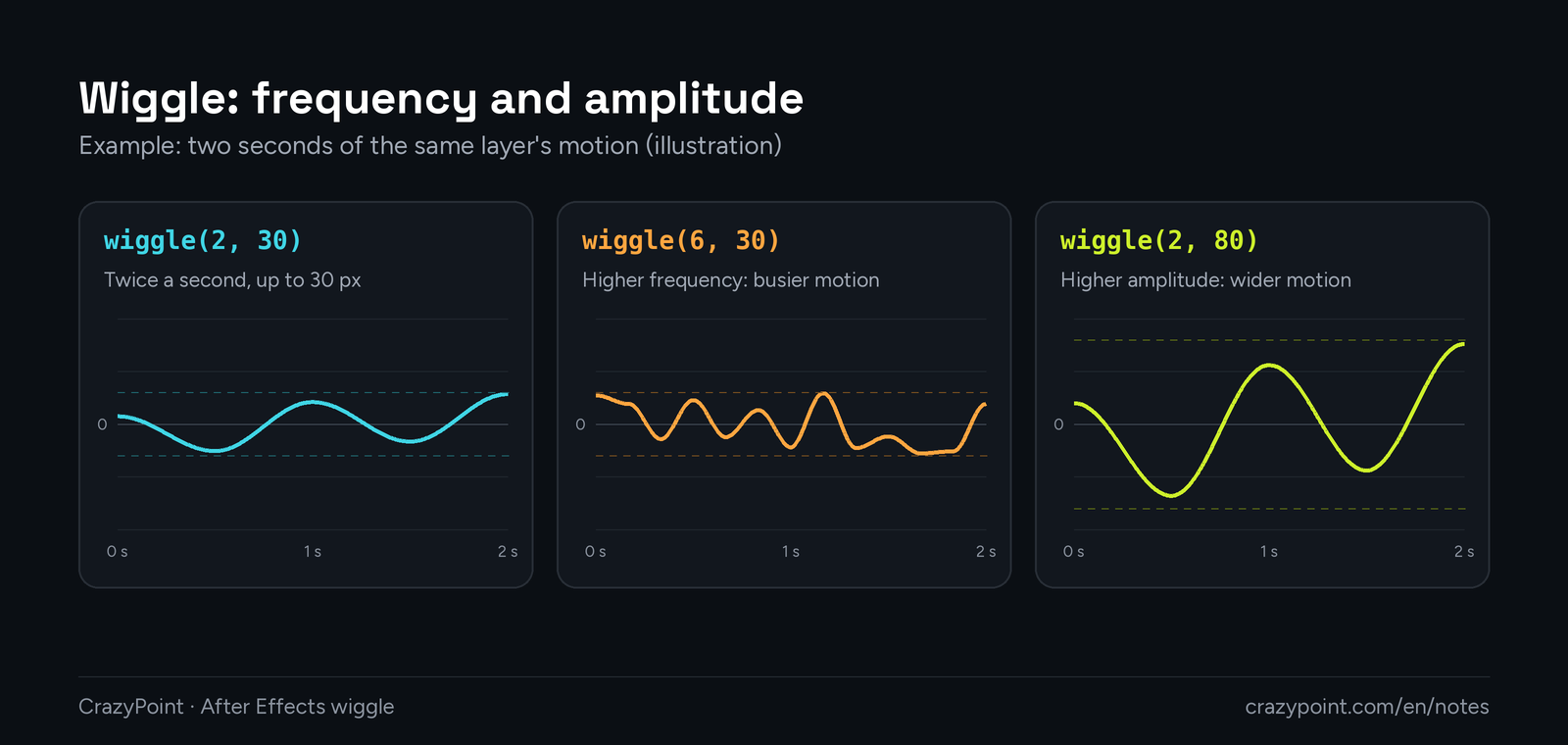
wiggle(2, 30)For a decimal number, use a point, for example wiggle(2.5, 30). That is because a comma separates the two numbers in the expression.
Wiggle moves both axes of Position. If you want horizontal shake only, keep the vertical value fixed:
w = wiggle(2, 30);
[w[0], value[1]]
For vertical shake only, write [value[0], w[1]] instead.
A plain wiggle on Scale moves width and height separately. As a result, the layer gets squashed. Tie both axes to the same value:
w = wiggle(2, 10);
[w[0], w[0]]Link the amplitude to a Slider Control. Then keyframe the slider. For example, the shake stops when the value is 0:
wiggle(4, effect("Slider Control")("Slider"))Tip
For camera shake, apply wiggle to a Null that the camera is parented to, not to the camera itself. That way, you can still animate the camera’s main move separately.
Motion Suite is a plugin we built for After Effects. Its Library has three ready wiggles. Here is how you set one up without writing code:
| Ready wiggle | Default settings | When to use |
|---|---|---|
| Wiggle | Frequency 2, amplitude 30 | General shake on Position, Scale, Rotation or Opacity |
| Wiggle (Axis) | Frequency 2, amplitude X 40, amplitude Y 0 | Horizontal-only or vertical-only shake |
| Looping Wiggle | Frequency 1, amplitude 30, loop duration 3 s | Videos that must loop seamlessly |
The looping wiggle is especially useful for Reels and GIFs that repeat. A standard wiggle jumps when the video starts over. The looping one, however, meets its first frame on its last frame.
If you select more than one layer, the Library also shows a delay option. Then each layer starts a few frames after the one before. Also, the “Remove Expression” command clears both the expression and its control effects.
You can download Motion Suite from its app page after signing in with Google. It is free until January 5, 2027. It runs on After Effects 2026 with Windows 10/11. The panel works in English and Turkish.
Besides the Library, there are three more tools. Ease edits curves, Glow builds light and Animation adds ready in and out animations. For example, we cover the ready counter in our counter animation post.
Most of the time, the cause is a comma. Use a point for decimals. Also, code copied from the web may contain curly quotes. In that case, retype the quotes on your keyboard.
Yes. Select the property and use Animation › Keyframe Assistant › Convert Expression to Keyframes. It adds a keyframe on every frame.
No. After Effects gives each layer its own random motion. So layers with the same code still shake independently.
No. Motion Suite builds After Effects’ own expressions and control effects. So your project keeps working without the plugin.
Build motion without writing code
Motion Suite is free until January 5, 2027. Want us to produce animated videos for you? See our Video Production page.

Comments are closed