

Saying a number in a video is easy. Making people remember it is harder. A counter animation helps by counting the number up from zero to its target. For example, it is often used for yearly growth or follower counts. In this post, we show two ways to build a counter animation in After Effects. One is by hand, the other uses Motion Suite.
In short
4
steps to a counter
2
number formats: 1,234.56 and 1.234,56
6
decimal places at most
A number can be the strongest part of a message. However, a number that just sits on screen is easy to miss. When it counts up, the eye follows it. So a counter animation works especially well here:
After Effects has no ready-made counter button. But you can build one with its own tools. Here is the method. Create a text layer and add a Slider Control effect to it. Then link the text to this slider with an expression. According to Adobe, a Slider Control is a control that feeds numbers to expressions.
Math.round(effect("Slider Control")("Slider"))This line rounds the slider value and writes it into the text. However, the result is a plain number such as “1000”. For thousands separators or decimals, you need a longer expression. You also repeat the same steps in every new video.
Motion Suite is a plugin we built for After Effects. Its Library tool has 43 ready expressions. One of them is the Number Counter. Here is how to set it up:
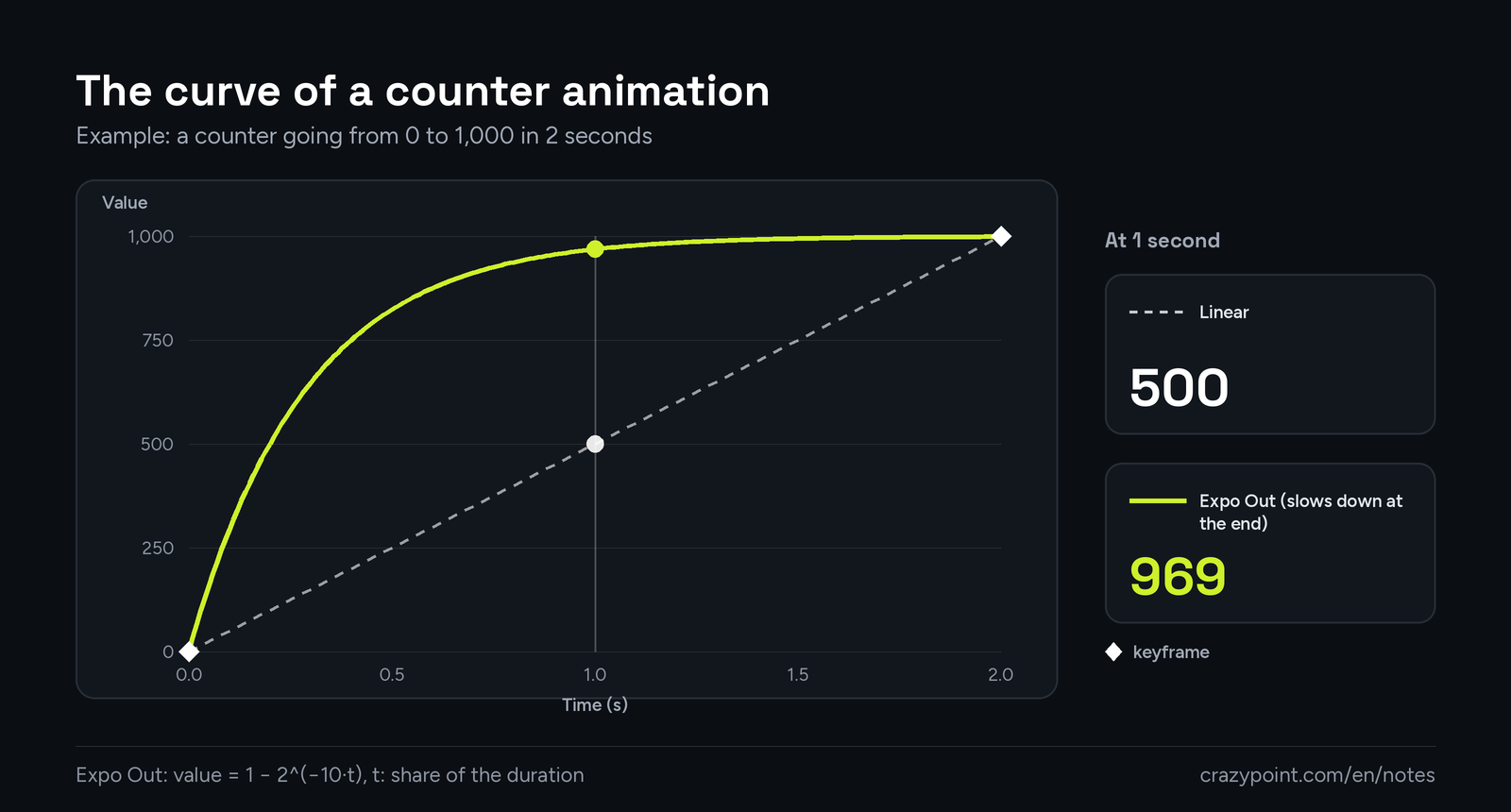
By default, the number slows down as it reaches the end. You can swap the curve for one of the presets in the Ease tool. All settings also stay on the layer as control effects. So you can change the number later in Effect Controls too.
English uses a comma for thousands and a point for decimals. Turkish and many other languages do the opposite. So the wrong format stands out to the viewer at once. Two options in Motion Suite’s counter handle this:
| Option | Off | On |
|---|---|---|
| Thousands Separator | 1234567 | 1,234,567 |
| Comma Decimals | 1,234.56 | 1.234,56 |
| Decimal Places | 0 gives 1235 | 2 gives 1,234.56 |
Comma Decimals is off by default when the panel opens in English. Turn it on for videos in languages that use a decimal comma.
The counter only writes the number. So put symbols such as “%”, “+” or “$” on a separate text layer. That way the symbol stays put and only the number changes.
In some fonts, each digit has a different width. As the number changes, the text can shift left and right. Pick a font whose digits have equal widths. Or right-align the text.
On social media, a counter of 1–2 seconds is usually enough. Long counters keep viewers waiting.
Tip
Does the number show a result? Then keep it on screen for a moment after the counter stops. That way viewers can read the final value.
You can download Motion Suite from its app page after signing in with Google. It is free until January 5, 2027. It runs on After Effects 2026 with Windows 10/11. The panel works in English and Turkish.
Besides the Library, there are three more tools. Ease edits curves, Glow builds neon light and Animation adds ready in and out animations. We cover easing in our easing post.
Yes. You can choose from 0 to 6 decimal places. For example, 2 places give 1,234.56.
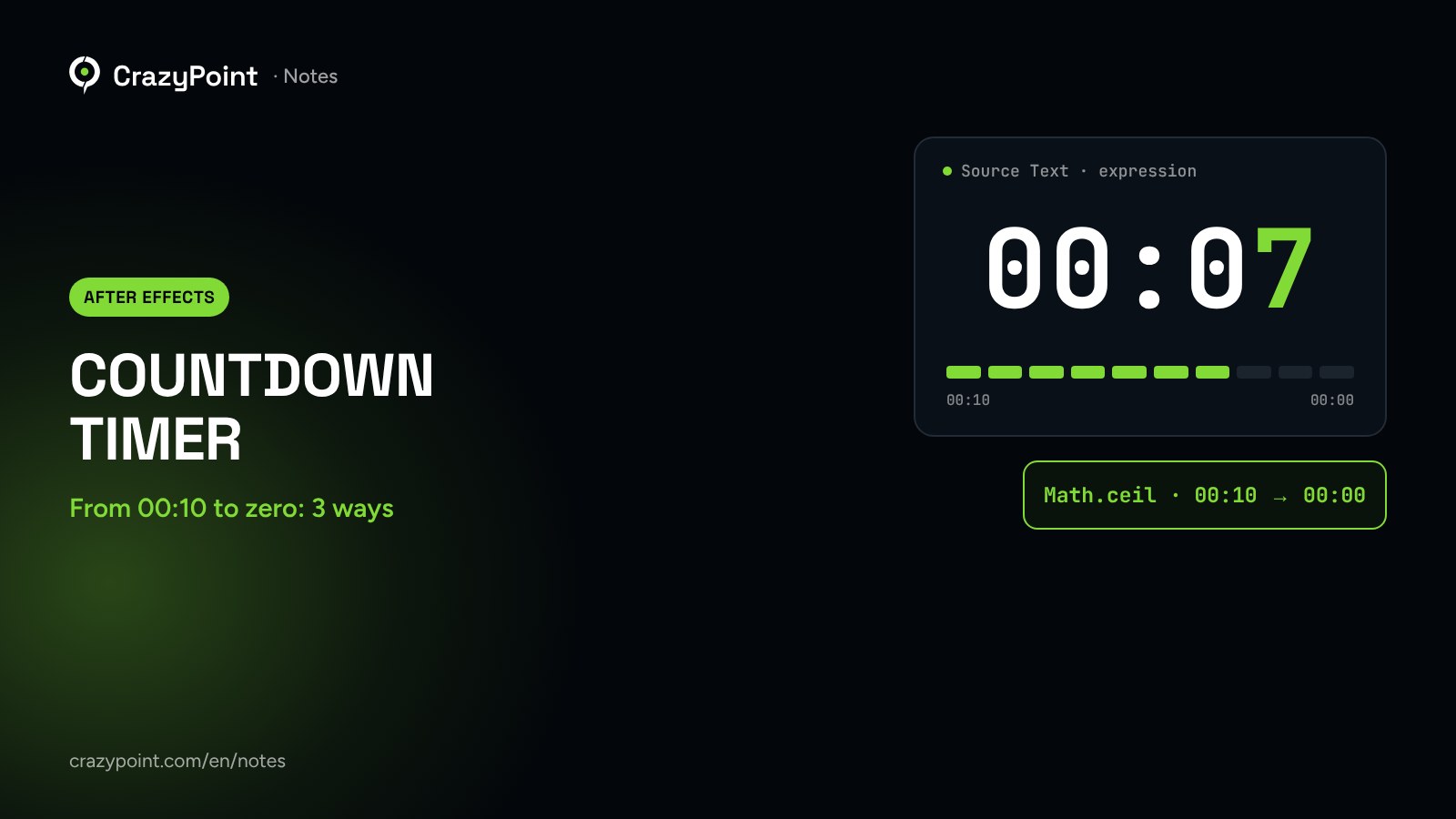
Yes. Just make the start value larger than the end value. For example, you can build a countdown from 10 to 0.
Select the layer and use “Remove Expression” in the Library. It clears the expression and any unused controls.
No. The counter is built with After Effects’ own expressions and controls. So it keeps working without the plugin.
Let’s make your numbers count
Motion Suite is free until January 5, 2027. Want us to produce videos with numbers for you? See our Video Production page.



Comments are closed