

A spinning wheel, a blinking arrow or a swinging pendulum repeats the same move. However, you don’t need to copy keyframes to stretch it out. In After Effects, a short loop expression called loopOut repeats the animation for you. In this post, we explain the 4 types of the loop expression and how to loop a video. We also show the ready loops in Motion Suite.
In short
4
loop types
2
keyframes are enough
10
ready loops (Motion Suite)
loopOut("cycle")Now the wheel keeps turning after 1 second. That is because loopOut plays the animation again when it reaches the last keyframe. It keeps doing so until the layer ends.
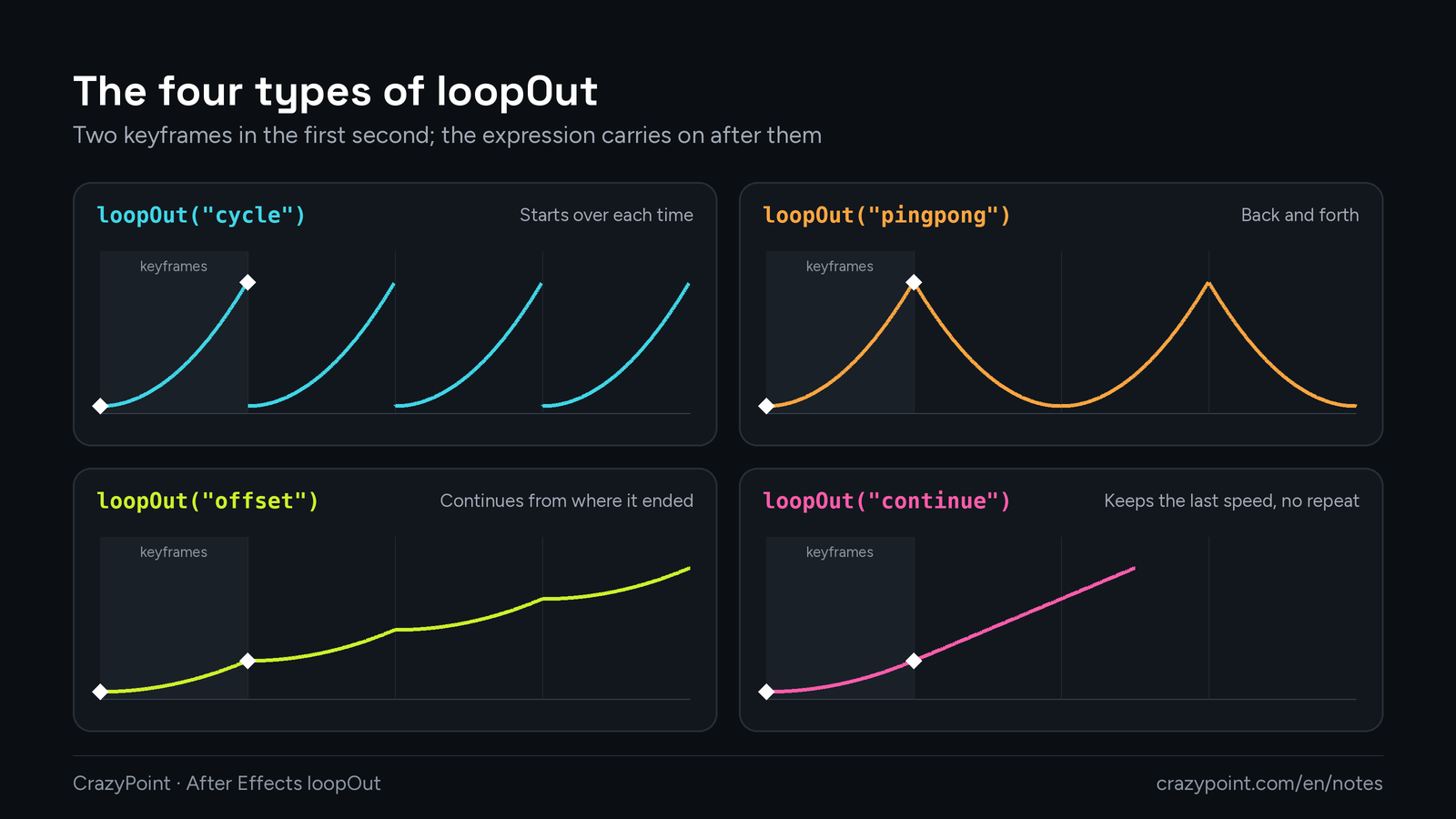
The word in the brackets sets how the loop repeats. Adobe’s example page lists four types. The drawing below shows the difference:
| Type | What it does | Example use |
|---|---|---|
| cycle | Repeats the animation from the start, endlessly | Blinking arrow, loading spinner |
| pingpong | Plays it back and forth | Pendulum, breathing button |
| offset | Each cycle continues from where the last one ended | Turning wheel, scrolling ticker |
| continue | Doesn’t repeat; keeps the last speed and direction | An object leaving the screen |
Write the type in lowercase, for example loopOut(“pingpong”). Also make sure the quotes are straight.
loopOut can also take a second number. According to Adobe, it sets how many keyframes join the loop, counting back from the last one. With 0, or no number at all, the whole animation repeats. With 1, only the part between the last two keyframes repeats.
loopOut("cycle", 1)This is handy for logo reveals. For example, the logo enters once, and then only the last part repeats. In other words, it grows in first and then gently breathes.
loopIn applies the same types before the first keyframe. For example, if your keyframes sit in the middle, loopIn starts the loop from the beginning of the layer. If you want both directions, you need a line that combines the two. Motion Suite has a ready one: Loop In + Out.
loopOut is not only for keyframes. You can also use it to repeat a short video or a precomp. For that, you need Time Remapping:
However, the loop may stall for one frame at the seam. In that case, move the last Time Remap keyframe one frame earlier.
That is because cycle jumps from the last keyframe back to the first. If the two values differ, you see a jump on every cycle. So either match the first and last values or use pingpong.
In fact, eased keyframes slow down at the end of every cycle. On a turning wheel, this looks like a short pause. So keep the keyframes linear if you want a steady speed. We cover easing in our easing post.
If you only want an object to spin at a steady speed, you don’t even need a loop. Write time * 90 on Rotation and the layer turns 90° per second.
Tip
To check that a loop is seamless, set the preview work area to cover two full cycles. A stutter usually shows right at the seam.
Motion Suite is a plugin we built for After Effects. The Loop category of its Library has 10 ready loops:
| Ready loop | What it does |
|---|---|
| Loop Out / Loop In (cycle, pingpong, offset, continue) | Eight ready versions of the four types; “Segments” replaces the second number (0: all) |
| Loop In + Out | Repeats the animation endlessly, both before and after it |
| Repeat N Times | Plays the animation only as many times as you want, then holds the last value |
After Effects’ loopOut repeats until the layer ends. A set number of repeats, on the other hand, needs a separate expression. That is why “Repeat N Times” is useful for social media videos. For example, an arrow blinks three times and then stops.
You can download Motion Suite from its app page after signing in with Google. It is free until January 5, 2027. It runs on After Effects 2026 with Windows 10/11. The panel works in English and Turkish.
Besides loops, the Library has other ready expressions such as wiggle, counter and typewriter. For example, we cover wiggle in our wiggle expression post.
First, make sure the property has at least two keyframes. Then check that the quotes are straight and the type is in lowercase.
loopOut repeats until the layer ends. For a set number of repeats, you can use the “Repeat N Times” loop in Motion Suite.
Yes. Select the property and use Animation › Keyframe Assistant › Convert Expression to Keyframes.
No. Motion Suite builds After Effects’ own expressions and control effects. So your project keeps working without the plugin.
Set up loops in one click
Motion Suite is free until January 5, 2027. Want us to produce animated videos for you? See our Video Production page.



Comments are closed