

A glitch effect is a split second where the image breaks and shifts. For example, colors split apart, strips slide sideways and the picture stutters. That’s why it’s popular in Reels transitions, tech promos and logo intros. In this post, we explain 3 ways to make a glitch effect in After Effects. What’s more, none of them needs a plugin.
Let us make your video
We make Reels, product videos and logo animations with glitch transitions. Using After Effects? Try the flicker and posterize presets in our free Motion Suite extension. If you’d rather leave it to us, get a quote.
In short
3
color channels: red, green, blue
12 fps
stutter rate in the example
15%
glitch chance in the expression (example)
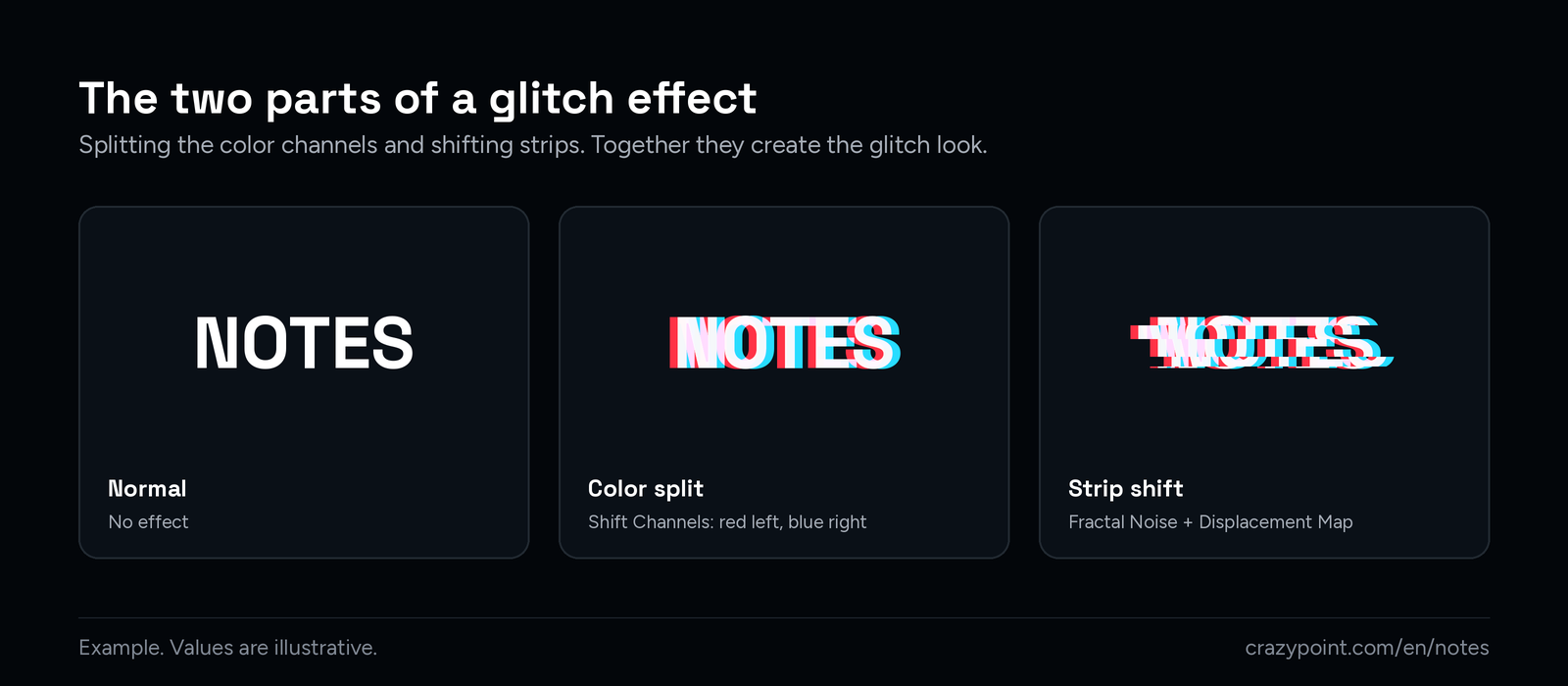
First, duplicate the footage layer twice (Ctrl+D, or Cmd+D on a Mac). Now you have three copies. Then apply Effect › Channel › Shift Channels to each copy.
Next, set the blend mode of the top two copies to Add. As a result, the image looks normal again. Finally, move the red copy a few pixels left and the blue copy a few pixels right. This creates color fringes at the edges.
In this method, you first make a strip map. Then you shift the image based on that map.
Don’t skip the precompose step. That’s because Displacement Map ignores any effects or masks on the map layer. This is stated on Adobe’s page on distort effects. So if Fractal Noise sits directly on the solid, it won’t see it.
In fact, a glitch looks more natural when it happens now and then, not all the time. So Alt-click the stopwatch on the layer’s Position (Option on a Mac). Then paste this code:
fps = 12;      // how many dice rolls per second
chance = 0.15; // glitch chance on each roll
amount = 40;   // max shift in pixels
seedRandom(Math.floor(time * fps), true);
r = random();
x = random(-amount, amount);
r < chance ? value + [x, 0] : value
The layer now “rolls a dice” 12 times a second. In other words, if the roll hits, it jumps sideways for a moment; otherwise it stays put. Lower `chance` to make glitches rarer. You can also use the same idea on Opacity. However, the code is meant for 2D layers. We cover another kind of random shake in our post on wiggle.
To make the glitch feel more digital, play the motion in steps. To do this, apply Effect › Time › Posterize Time to the layer. Then set Frame Rate to, say, 12. Or add `posterizeTime(12);` at the very start of an expression. As a result, the motion updates only 12 times a second.
The Library in our Motion Suite extension has three ready-made pieces for a glitch:
It wiggles only horizontally or only vertically. For example, set Amplitude Y to 0 and the layer shakes only sideways. The defaults are frequency 2 and Amplitude X 40. For a glitch, raise the frequency.
It flickers Opacity at random, like a broken neon sign. The defaults are min 40%, max 100% and speed 12 per second. No keyframes needed.
It plays the motion in choppy steps, like stop-motion. The default frame rate is 12. Apply it to a property that already moves.
Use all three on one layer and you get a simple glitch without plugins. The controls are added to the layer as effects. So you can change the values later. Motion Suite is free until 5 January 2027.
The map layer isn’t precomposed. Precompose the solid with Fractal Noise and pick the precomp as the map.
Shifted pixels move outside the layer. In that case, turn on Wrap Pixels Around or Expand Output in Displacement Map.
The `chance` value in the expression is too high. Also, lowering `fps` makes glitches rarer.
Fractal Noise and Displacement Map are heavy. So preview at half or quarter resolution.
We are an agency based in Ankara. Ideas, shooting, editing, color and animation are done by the same team. The work moves in three steps:
Shooting, editing and 3 rounds of revisions start at 15,000 TL + VAT. For editing-only jobs, we quote after seeing the footage.
No. That’s because Shift Channels, Fractal Noise, Displacement Map and Posterize Time are built into After Effects. All three methods in this post work without plugins.
Put a few frames of glitch right before and after the cut between two clips. For example, 4 frames on each side can be enough. To do this, you can apply the effects to an adjustment layer.
Yes. But precompose the text layer first. Then apply the methods in this post to the precomp.
No. Motion Suite is free until 5 January 2027. Sign in with your Google account on the app page and download it.
Let’s make your video together
Tell us in a few sentences where the video will run and what it should say. We will agree on the scope and send a written quote. For details, see our Video Production page.

Comments are closed