

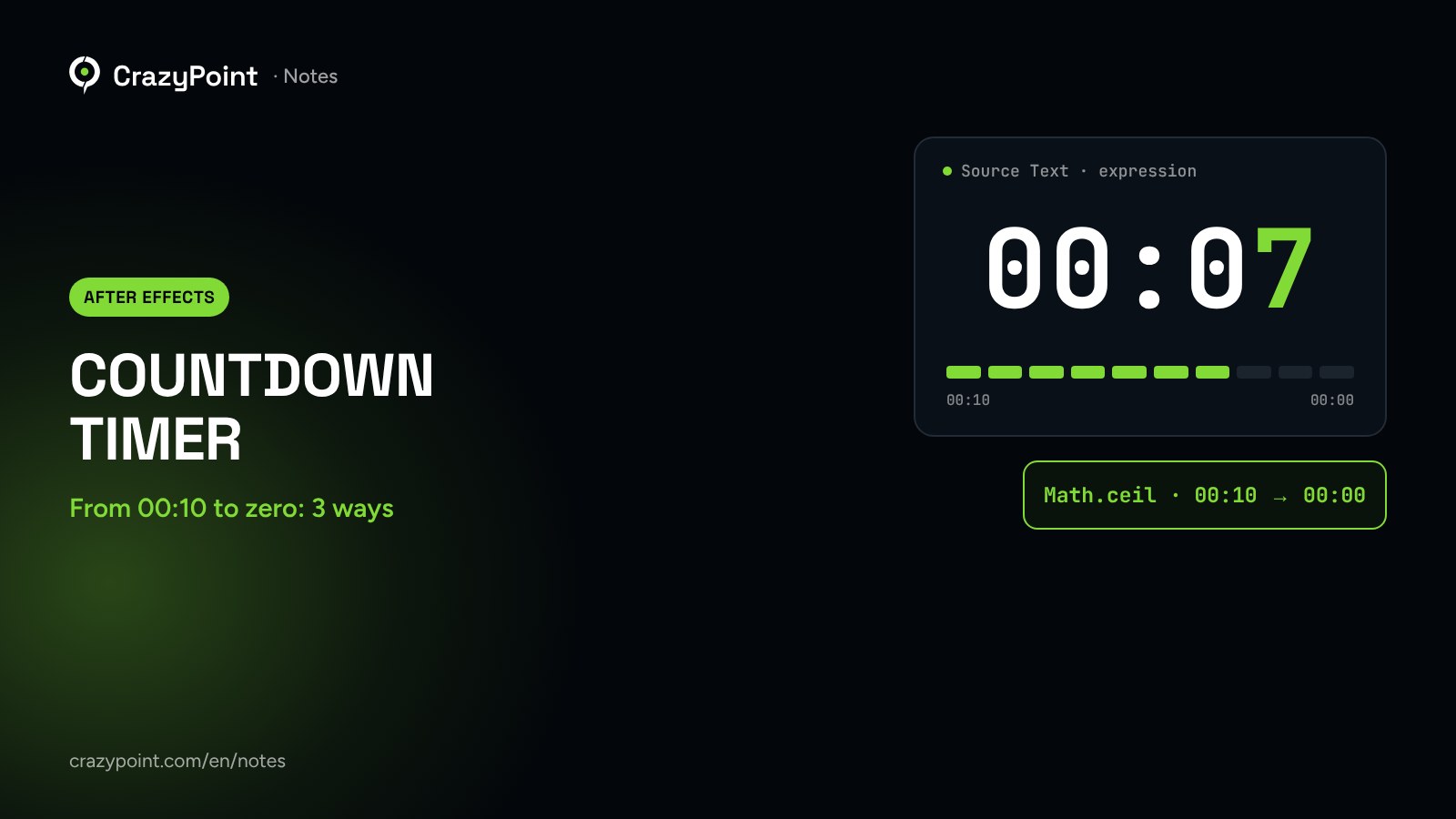
Numbers dropping from 10 to zero in a launch video. Time running down in an event teaser. In After Effects, a countdown timer is a text layer and a short expression. You also don’t need a plugin. In this note we build the timer in three ways. Then we add hundredths, hours and days. Finally, we fix jumping digits and timers that hit zero too early.
Let us make the video with the countdown
We can shoot and edit your launch, campaign or event video. The countdown, logo animation and on-screen text are part of the edit. Shooting, editing and 3 rounds of revisions start at 15,000 TL + VAT. See our video production service or ask for a quote.
In short
Math.ceil so every number stays on screen for a full second.00:10
Minutes:seconds format
3
Ways to build it
0
Keyframes (ways 2 and 3)
1 s
Time each number stays on screen
Both change a number. However, they do different jobs. A number counter grows a value, for example from 0 to 1,250. A countdown shows time and ends at zero. We covered the number counter in Number counter animation in After Effects.
| Number counter | Countdown timer | |
|---|---|---|
| Example | 0 → 1,250 | 00:10 → 00:00 |
| Format | Thousands separator, decimals | Minutes:seconds, hundredths |
| Driven by | A Slider value | Elapsed time |
| Typical use | Customers, revenue, percentages | Launches, sale endings, exams, live starts |
Here a Slider holds the time, and the expression writes the digits. Because you set the keyframes yourself, you can pause the timer or slow it down.
var s = Math.max(0, Math.ceil(effect("Slider Control")("Slider")));
var m = Math.floor(s / 60);
var sec = s % 60;
(m < 10 ? "0" : "") + m + ":" + (sec < 10 ? "0" : "") + sec
First, the code rounds the Slider value up. Then it splits it into minutes and seconds. Finally, it adds a leading 0 to single digits, so 9 seconds reads 00:09. Adobe’s help page on expression controls has more on Slider Control.
The upside of this way is flexibility. For example, two keyframes with the same value in the middle make the timer wait. Similarly, moving the keyframes closer makes it run faster.
If the timer should simply run, you don’t need keyframes. The code measures elapsed time itself. Put this on the text layer’s Source Text:
var duration = 10; // seconds
var t = Math.max(0, time - inPoint);
var left = Math.max(0, Math.ceil(duration - t));
function two(n) { return (n < 10 ? "0" : "") + n; }
two(Math.floor(left / 60)) + ":" + two(left % 60)
The 10 in the first line is the duration in seconds. For instance, 90 starts the timer at 01:30. inPoint is the moment the layer starts. So you set the start by sliding the layer in the timeline. At zero, Math.max(0, …) holds the timer at 00:00.
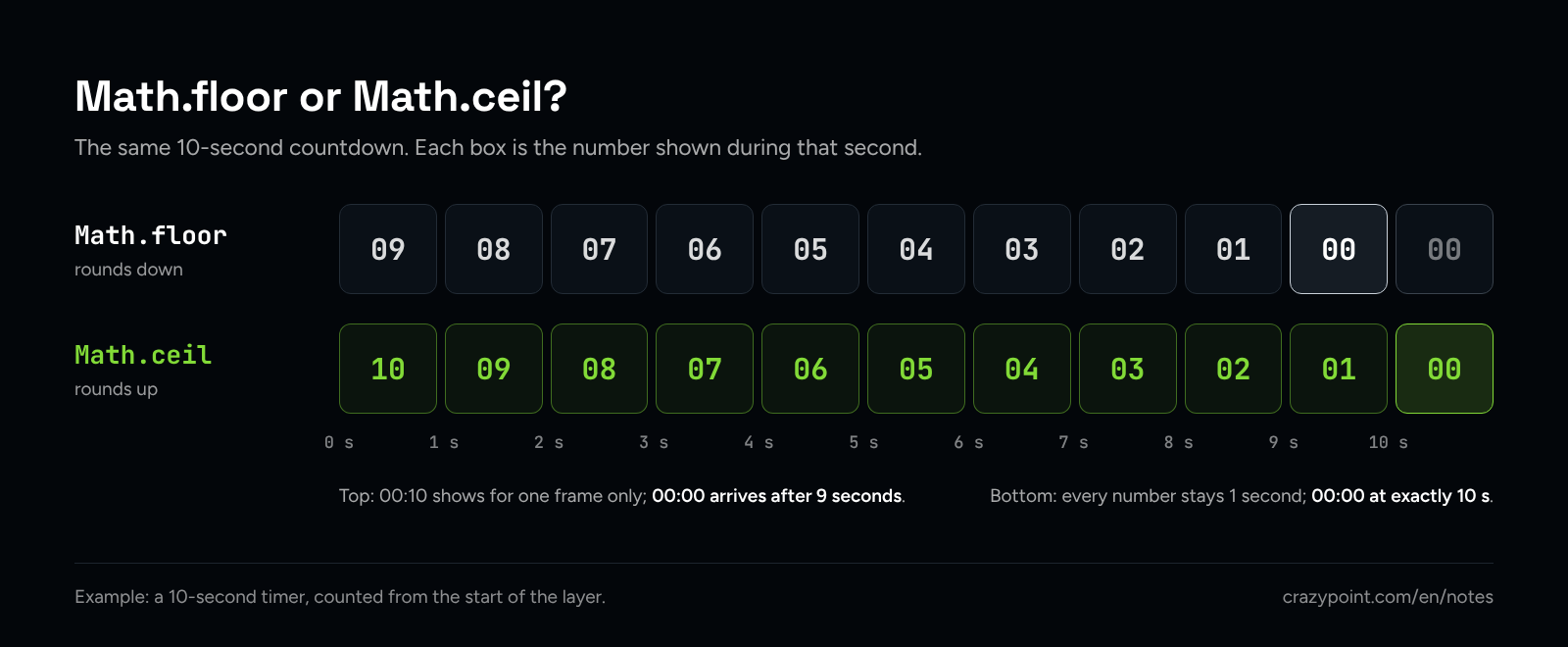
This small choice changes how the timer looks. If you round down, the timer jumps to 00:09 the moment it starts. It also reaches 00:00 after 9 seconds. If you round up instead, every number stays on screen for a full second. Zero then arrives exactly at 10 seconds. That is what viewers expect from a countdown. That is why the code above uses Math.ceil.
For hundredths you don’t round. Instead, the remaining time is split as it is:
var duration = 10;
var v = Math.max(0, duration - (time - inPoint));
function two(n) { return (n < 10 ? "0" : "") + n; }
two(Math.floor(v / 60)) + ":" + two(Math.floor(v % 60)) + "." + two(Math.floor((v % 1) * 100))
English uses a dot as the decimal separator. In a Turkish video, use a comma instead.
For a long countdown, turn the duration into seconds and use the same method. As a reminder, a day is 86,400 seconds and an hour is 3,600:
var duration = 3 * 86400 + 4 * 3600; // 3 days 4 hours
var k = Math.max(0, Math.ceil(duration - (time - inPoint)));
function two(n) { return (n < 10 ? "0" : "") + n; }
var d = Math.floor(k / 86400);
var h = Math.floor(k % 86400 / 3600);
var m = Math.floor(k % 3600 / 60);
d + " days " + two(h) + ":" + two(m) + ":" + two(k % 60)You can also show the time as timecode. After Effects’ timeToTimecode turns a time into hours:minutes:seconds:frames. For example, at 25 fps it writes 00:00:09:24. However, the default base is 30 frames. So pass your comp’s frame rate as the second value:
timeToTimecode(Math.max(0, 10 - (time - inPoint)), 25, true) // 25: frame rateThe details are in Adobe’s expression language reference.
The Library in Motion Suite, the plugin we built, includes a ready-made countdown. So there is no code to write.
The preset writes minutes:seconds. With Countdown off, it becomes a stopwatch and counts up from the start value. In an English panel, hundredths are separated with a dot. On several layers, the Stagger option starts the timers one after another.
Still, note one difference. The preset rounds the remaining time down. So a 10-second timer shows 00:00 after 9 seconds. If every number must stay for a full second, use the code from way 2.
Finally, Motion Suite is free until 5 January 2027. You can download it from the Motion Suite page.
In some fonts, 1 and 0 are not the same width. As a result, the text shifts as the numbers change. Pick a font with equal-width digits, or left-align the text instead of centring it.
When time runs out, the code returns a negative value. In that case, wrap the remaining time in Math.max(0, …). The timer then stops at 00:00.
On its own, time counts from the start of the comp. In contrast, time - inPoint counts from the start of the layer. If the timer should move with the layer, use inPoint.
Most likely the code rounds down. In that case, use Math.ceil instead of Math.floor. You can also build it with keyframes as in way 1.
In launch and campaign videos, we design the countdown as part of the edit. So the process is the same as our video production service:
Shooting, editing and 3 rounds of revisions start at 15,000 TL + VAT. For edit-only jobs, we look at the footage first and then send a quote.
No. A text layer and a short expression on Source Text are enough. A plugin only saves time.
Yes. Turn the remaining time into seconds and put it in the duration line. However, date functions in expressions read the moment the video is rendered. In other words, they can’t read the viewer’s clock. So a live countdown needs a timer on a website, not a video.
Yes. Delete the last line of the code in way 2 and write just left. The timer then counts down as a single number.
Yes, because the expression calculates every frame from time. As a result, preview and render show the same number.
Let’s plan your countdown video
Let us make your launch, campaign or event video from shoot to delivery. Tell us what you need in a few sentences. Then we will send you a clear quote.




Comments are closed