


It takes little work to add subtitles to a video, but the effect is big. That is because videos are often watched with the sound off. Subtitles carry the message to those viewers too. They also help viewers who are deaf or hard of hearing. In this post, we explain the SRT file and our 4 steps.
In short
4
parts: number, time, text and a blank line
2
kinds: closed and burned-in
13
languages for translation: with Whisper
SRT is a plain text file that holds subtitles with their timing. Its structure is very simple. Each subtitle has four parts. First comes a sequence number, then the start and end time. After that come the text and a blank line. According to YouTube, the time looks like “00:00:04,160”. That is hours, minutes, seconds and milliseconds. Note the comma before the last three digits.
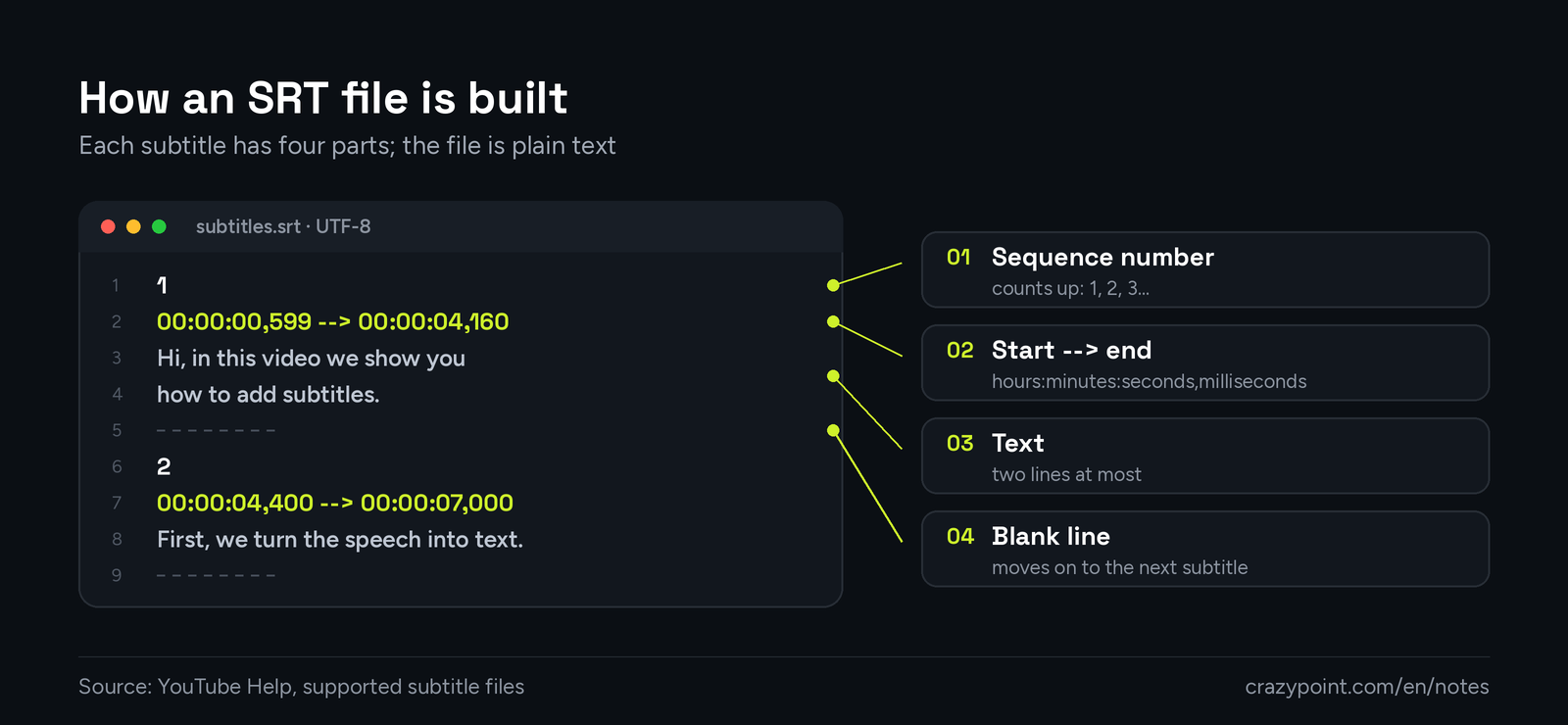
YouTube also asks for the file to be saved as UTF-8. It ignores styling such as fonts or colours. In short, SRT carries only the text and the timing.
There are two ways to add subtitles. Both have their place. Which one is better? That depends on where you share the video.
| Closed captions | Burned-in subtitles | |
|---|---|---|
| How does it work? | Uploaded as a separate .srt file | Written onto the picture in the edit |
| Can viewers turn it off? | Yes | No |
| Can you change the design? | Limited to the platform’s look | Font, colour and position are up to you |
| Where does it fit? | YouTube, X and editing software | Short videos like Reels, TikTok and Shorts |
Whatever kind you choose, most of the work happens in the first two steps. Here they are:
For example, on YouTube you upload the file from the Subtitles section in Studio. On X, you add the video and then use “Upload caption file (.srt)” below it. However, according to X, this option is only on the web for now.
Broken characters?
Do you see odd symbols instead of letters like é or ş? Then the file has the wrong encoding. Open it in Notepad and save it again as UTF-8.
In short videos, the text is usually part of the picture. So we bring the .srt file into the editor and design the subtitles there. For example, in Premiere Pro you import the .srt file. Then you drag it onto the timeline. This creates a caption track. Then you set the font and position and export the video.
Do you want highlighted text that appears word by word? Then our After Effects plugin Type Hook makes it easier. Type Hook imports SRT and word-timed JSON files directly. For details, see our Type Hook post.
Check these points before you publish. For timing, we used Netflix’s style guide as a reference:
We do the transcription and timing with our own app, Whisper. We drop the file into the window. Then Whisper turns the speech into text on the computer. The result is a ready-timed .srt file and a .txt transcript.
There are Fast, Balanced and Best quality modes. We use Fast for everyday work and Best quality for important jobs.
If needed, we translate the text into one of 13 languages. The translation follows the whole text, not line by line. So a translated subtitle file is ready too.
At CrazyPoint
For brands that publish in other languages, we check the original first. Then we make the translation.
SRT is a plain text file. So any text editor, like Notepad, can open and edit it.
Automatic captions are a quick start. But they can get names and punctuation wrong. So check the text before you publish.
For short videos, we usually burn the subtitles into the video. That way, the design and position stay in your hands.
Transcription runs on your computer. Translation and licence checks need an internet connection.
Let’s make subtitles easier
Want to use Whisper in your team? Or want us to produce your videos with subtitles? Write to us. For details, see our Video Production page.

Comments are closed