


In a talking video, most of the work starts with text. Captions, on-screen hook text and translations all come from it. So the first step is to transcribe a video. Get the text right once, and every later step gets faster. In this post, we show how we use four of our apps in one workflow.
In short
4
apps: in one workflow
2
files: .srt and .txt
13
languages: with Whisper
Many people now watch talking videos with the sound off. So on-screen text is a must. However, writing the text again for each format takes time. Typing it once for captions and again for hook text is wasted work.
If you have accurate text with timing, everything else follows from it. For example, the captions are that file. The hook text is built from the same words. The translation also starts from the same text. In short, transcribing the video is the base of the whole workflow.
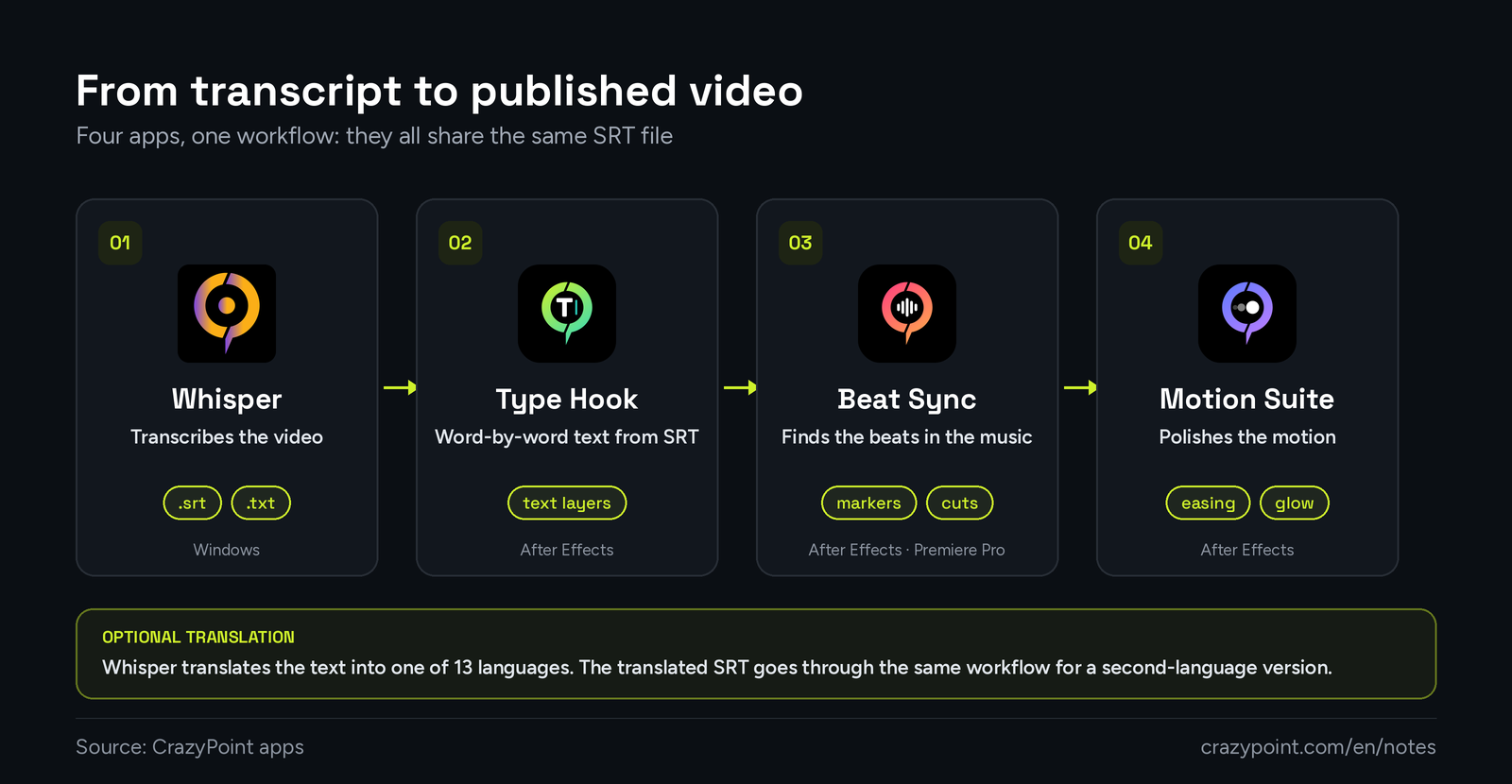
Here is the whole workflow. Each step is explained below.
Whisper is a Windows app that turns audio and video into text. First, you drag the file into the window. Then you pick a quality mode and the spoken language. Whisper can also detect the language itself. You can also set it to Turkish or English. Note that the app’s interface is in Turkish for now.
| Quality mode | When to use it |
|---|---|
| Fast | Drafts and everyday jobs |
| Balanced | When speed and accuracy both matter |
| Best quality | Important jobs that will be published; the slowest |
When it is done, two files are saved next to the video. One is plain text (.txt), the other is captions (.srt). The transcription runs on your computer. So once the model is downloaded, no internet is needed. Whisper also skips silent parts, which gives a cleaner result.
Automatic transcription is fast, but it is not perfect. So always read the text before you publish. An SRT file is plain text, so Notepad opens it. Check these points in particular:
We explain the SRT file and caption rules in our subtitles post.
The first seconds matter a lot on Reels and TikTok. Highlighted text that appears with the speech keeps viewers watching. Type Hook builds this text in After Effects. It also reads the SRT file that Whisper makes.
Click Import… in the panel and choose the SRT file. Type Hook splits the text into phrases of 2–3 words. Then it highlights the longest word in each phrase.
Each line in an SRT file has a start and an end time. Type Hook shares that time evenly between the words in the line. So each word appears very close to when it is spoken. If needed, you fine-tune it with markers.
Choose a preset, or set the font and colour yourself. Then click Apply. Each word becomes its own text layer.
Tip
You don’t always need the whole video for hook text. For example, import only the first few sentences and use plain captions for the rest.
We cover Type Hook step by step in our word-by-word text post.
Talking videos often have music in the background too. When cuts land on the beat, the video feels smoother. Beat Sync analyses the music and writes the beats as markers.
Then you can do two things. First, line up B-roll and photos on the beats. Second, give a logo or a title an animation that pulses on the beat. If you edit in Premiere Pro, use the Premiere Pro version of Beat Sync. It writes markers to the sequence and places clips on the beats.
Don’t let the music drown out the speech
Beat effects should not compete with the speaker. So use them on the logo and B-roll. Keep it simple over the person talking.
For details, see our Beat Sync post.
In the last step, we tidy up the motion of the whole video. Motion Suite brings four tools into one panel:
| Tool | What it does in this workflow |
|---|---|
| Ease | Smooths the motion of the logo and titles |
| Animation | Adds in and out animations to titles and end cards |
| Glow | Adds a travelling light to a logo or product |
| Library | Sets up ready expressions such as counters in one click |
However, the hook text gets its own animation from Type Hook. So we mostly use Motion Suite on the logo, titles and end card. We cover easing in our easing post.
Whisper can translate the text into one of 13 languages. It translates the text as a whole, not word by word. You then get two more files: the translated text and the translated captions.
So the second-language version follows the same path. For example, import the English SRT into Type Hook and build a second hook text. However, word order changes in translation. So check the highlighted words and the timing again.
| App | Where it runs | What it makes | Status |
|---|---|---|---|
| Whisper | Windows app | .srt and .txt, plus a translation if you want | Ask about it |
| Type Hook | After Effects panel | Word-by-word text layers | Free until January 5, 2027 |
| Beat Sync | After Effects and Premiere Pro panels | Markers, beat-driven animation, cuts | Free until January 5, 2027 |
| Motion Suite | After Effects panel | Easing, expressions, glow, animation | Free until January 5, 2027 |
You can download the three plugins from their app pages. All three work in English and Turkish. For Whisper, please get in touch with us for now.
We built these four tools to cut the repeated steps in our own video work. Each one takes over one step. They also share one file: the SRT file from Whisper.
We get the text right once. Captions, hook text and translations all come from it.
Whisper is not available as a download yet. If you want to use it, just write to us from the app page.
The transcription runs on your computer. Translation and licence checks need the internet.
Each line in an SRT file has a start and an end time. Type Hook shares that time evenly between the words. If needed, you fix the timing with markers.
The plugins are tested on Windows 10 and 11. Whisper is also a Windows app. macOS has not been tested yet.
Type Hook, Beat Sync and Motion Suite are free until January 5, 2027.
Let’s make your video with this workflow
Want to use Whisper in your team? Or should we produce your talking videos? Write to us. For details, see our Video Production page.

Comments are closed